
Deploy AlgoRover Live to your own Linux VPS
Last updated ·
Prepare a Linux VPS, install Live and sign in, then use AI to check the server, approve migration, configure exchange credentials and start a strategy. Learn how server execution continues with your laptop closed and how to manage it remotely.
1. Prepare your own VPS
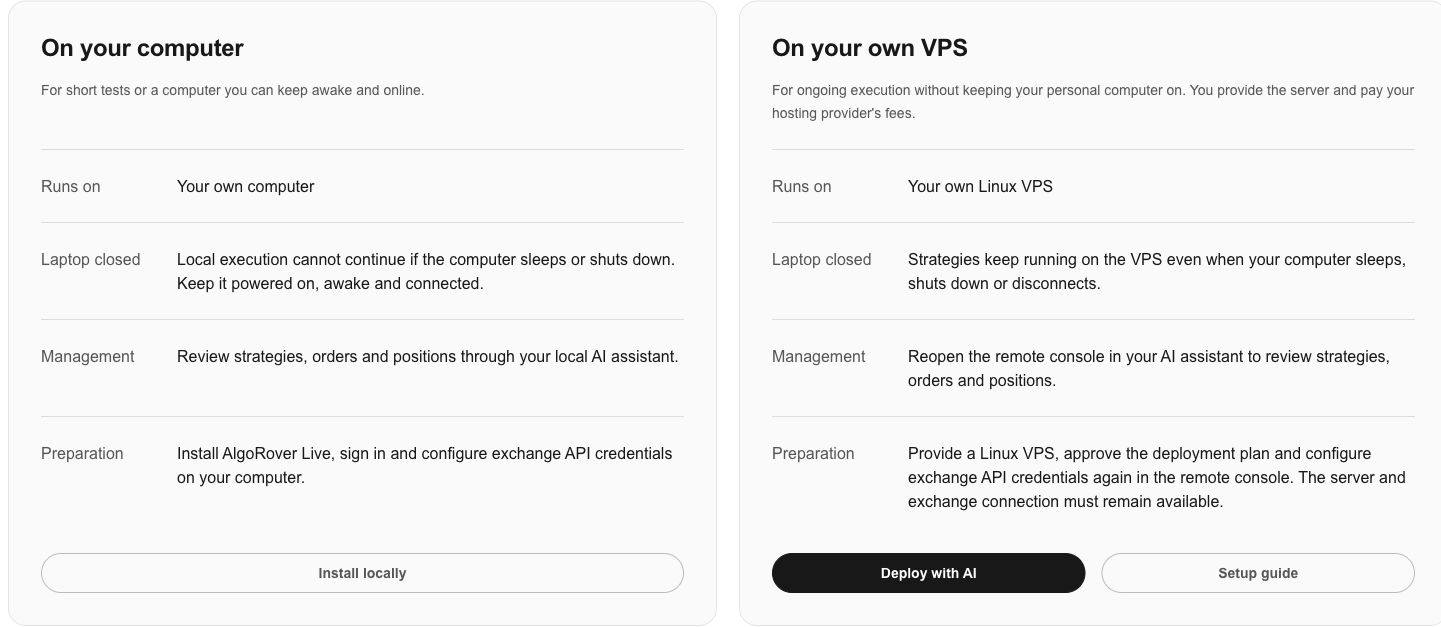
A VPS is a remote server you connect to over the internet. After deployment, active strategies can keep running on it while your computer sleeps or shuts down. For short tests, you can also run locally on a computer you keep powered on, awake and online.
No VPS yet: prepare a server first
Copy the preparation prompt below into Codex or Claude Code. Ask AI to check Live’s official requirements for the operating system, resources and network, then guide you through creating a Linux server on a hosting provider’s website.
You complete the purchase and payment; the provider charges the server fees. Prepare the server address and SSH sign-in method before continuing.
I want to run AlgoRover Live continuously on a VPS, but I do not have a server yet. Check the latest official deployment instructions at https://github.com/AlgoRover/algorover-hub and confirm the required Linux system, resources and network conditions. Guide me through preparing a server on a hosting provider’s website. Explain that the provider charges the fees and I complete the purchase and payment. Once the server is ready, show me how to configure SSH through local tools without pasting passwords or private keys into chat. Do not deploy yet.Already have a VPS: check your existing server
Ask AI to check whether your existing server meets the deployment requirements. Configure passwords or SSH private keys through local tools, without pasting them into chat.
Once the server address and SSH sign-in method are ready, continue to step 2 to install Live and sign in. If you have already installed Live and signed in, go directly to step 3 to review the deployment plan.
2. Install Live and sign in
Use the official installation prompt in an AI workspace that can operate a local terminal and SSH. If Live is already installed, check whether its version supports VPS deployment before proceeding.
Ask AI to begin using Live, open the Dashboard workspace as instructed, register or sign in, then return to confirm the connection. If your chat interface cannot use a terminal or SSH, continue in a workspace with those capabilities.
Using the latest official instructions at https://github.com/AlgoRover/algorover-hub, help me install AlgoRover Live and check Linux VPS support. If it is installed, check the current version first. Then guide me to sign in through the Dashboard workspace and confirm the connection.3. Copy the complete prompt for AI-guided deployment
Copy the complete deployment prompt below into Codex or Claude Code. It shares its content with the Live product page and asks AI to check installation and sign-in, server preparation, the deployment plan, API setup and startup approval. AI checks the existing state of steps you have already completed.
Review and approve the deployment or migration plan before execution. Steps 4–6 below explain what happens next; use their prompts if you need to continue a particular step. Configure passwords, SSH private keys and exchange API secrets through local tools or the remote console.
Using the latest official instructions at https://github.com/AlgoRover/algorover-hub, help me deploy AlgoRover Live to my own Linux VPS. First check whether Live is installed and supports VPS deployment; if not, guide me through installation and product sign-in. Check whether I have a VPS and the required SSH access; if not, explain what I need to prepare. If this AI workspace cannot use a local terminal or SSH, guide me to a workspace that can. Check the server environment and show the deployment or migration plan, how to handle existing tasks, and any hosting costs. Wait for my approval before executing. Migrate strategies and configuration without transferring existing exchange API credentials. Guide me to configure credentials again in the remote console with only the required read and trading permissions, withdrawals disabled, and an IP allowlist if required. Do not ask me to paste passwords, SSH private keys or API secrets into chat. Finally show the server, strategy version, execution mode, instrument, position limits and stop conditions. Wait for explicit approval before starting a strategy, and explain how to monitor, stop and check its status after an interruption.4. Configure exchange API credentials again
Migration transfers strategies and settings without transferring existing exchange API credentials. Follow the AI guidance to configure credentials for the correct exchange and environment in the remote console.
Demo and live environments use their own credentials. Grant only required read and trading permissions, disable withdrawals and allowlist the VPS IP when required. Exchange services remain subject to their regional and account rules.
Guide me through configuring exchange API credentials for the VPS in the remote console. Check the Demo or live environment, read and trading permissions, disabled withdrawals and required IP allowlist. Do not request API secrets in chat or start a strategy yet.5. Review settings and approve the start
Review the target server, strategy version, instrument, mode, position limits and stop conditions. Test execution in a supported exchange Demo environment before separately approving live trading.
After starting, check actual status, orders and positions to confirm execution is on the VPS. Eligible VPS setups support starting the service on boot; check whether this is supported and configured in the deployment result.
Show the VPS target server, strategy version, mode, instrument, position limits and stop conditions. Check whether service startup on boot is supported and configured. Wait for explicit approval before starting, then verify actual execution status.6. Monitor and stop after closing your laptop
Only active strategies deployed to a VPS can continue on the server when your computer sleeps, shuts down or disconnects. Local deployment still requires an awake, powered-on and connected computer.
Reopen the remote console in your AI assistant to review and manage the strategy. Server, network and exchange connectivity must remain available. After an interruption, reconcile strategy status with actual exchange orders and positions before deciding whether to resume.
Open the AlgoRover Live remote console and check VPS strategy status, actual orders and positions. Explain how to stop the strategy. If an interruption occurred, reconcile its recovery status and wait for approval before resuming.