
Why does OKX report an unsupported account mode when Futures mode is enabled?
Last updated ·
If an OKX demo connection returns acctLv=1 or an unsupported account mode, check the API's account, demo environment and account mode, then run a new test.
What does this error mean?
When testing OKX demo credentials in AlgoRover Live, an unsupported account mode message, acctLv=1 or spot mode cannot trade perpetual swaps means the API check read an account in Spot mode. That account cannot trade perpetual swaps.
Check the account and environment associated with this exact API key. Futures mode on the main account does not establish the mode of the sub-account where the key was created.
Confirm whether the API belongs to the main account or a sub-account
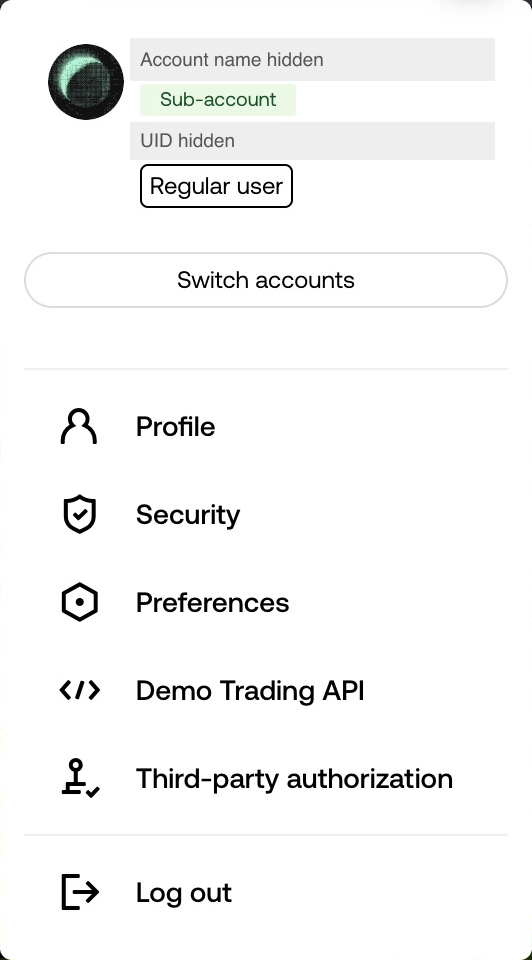
Open the user menu in the upper-right corner of OKX. If the API was created for the main account, check that account. If it belongs to sub-account A or B, switch to that specific sub-account.
Look for the Sub-account label and use Switch accounts to select the API's account. Account names and UIDs are hidden in the screenshot.
Confirm that you are in Demo trading
This guide covers demo trading. In the API's account, check for Demo trading at the upper left and Assets - Demo trading in the asset menu. The ← Live trading button returns to live trading; it does not indicate that you are currently using live trading.
In AlgoRover Live, confirm that the credential is marked OKX · Demo and uses an API created in OKX's demo environment. An API for sub-account A's demo environment must be checked inside sub-account A → Demo trading.

Open Settings and check Account mode
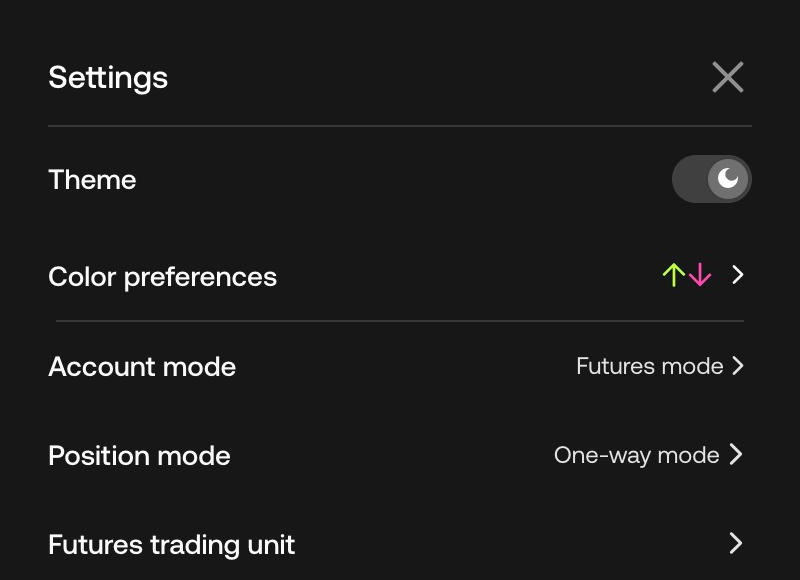
In the account and demo environment you just confirmed, open a perpetual market such as BTCUSDT and select the trading Settings icon on the right. Open Account mode.
Account mode determines the products you can trade. Position mode determines how long and short positions are managed. For acctLv=1, check Account mode first, then check position mode and leverage against the strategy's deployment requirements.
Confirm that Futures mode is active
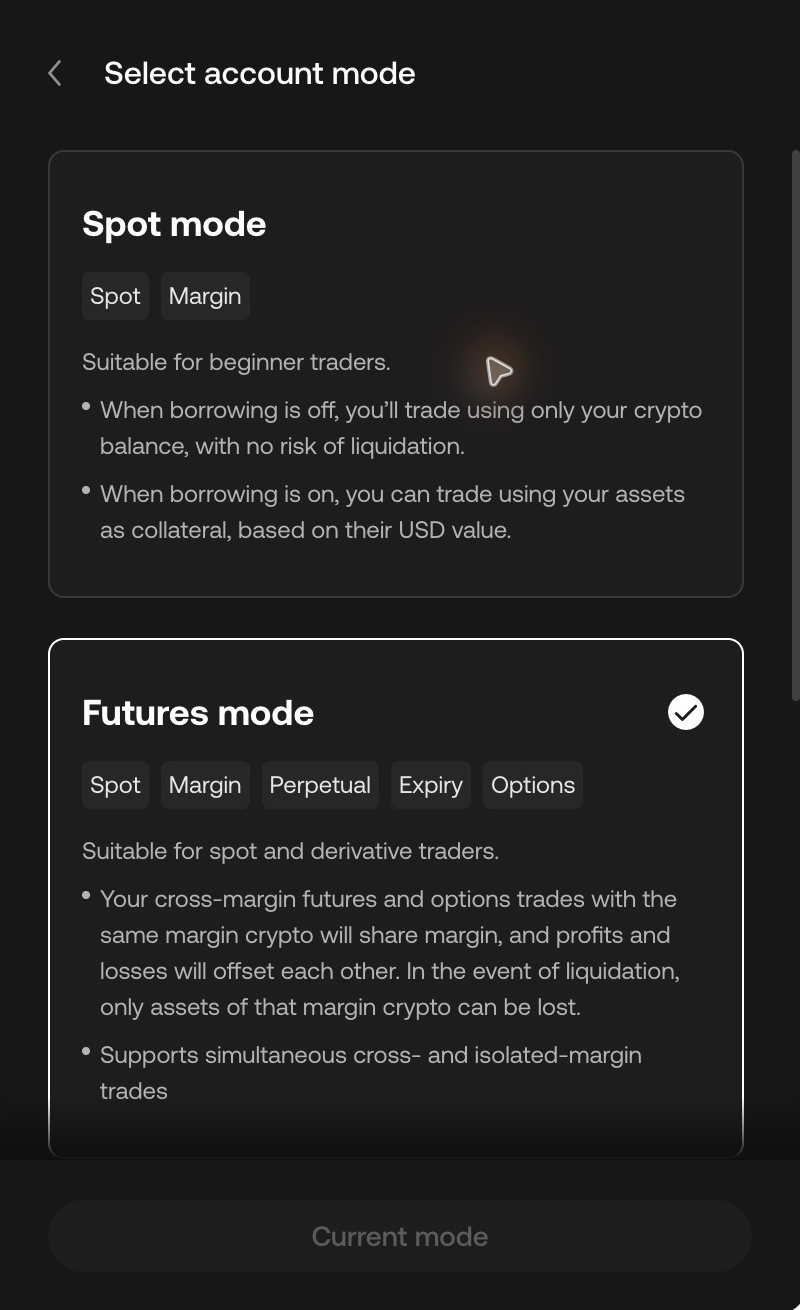
If the API's account is still in Spot mode, select Futures mode, read OKX's prompts and complete confirmation. If OKX lists conditions for switching, follow the on-screen instructions.
Confirm the checkmark on the Futures mode card and the Current mode button below it. Opening the settings panel or selecting an option alone does not establish that the change is complete.
Return to AlgoRover Live and test again
Open AlgoRover Live → Credentials → OKX Demo → Test. Use the new test result; the old failure shown before the OKX change may still remain on the page.
Still returns acctLv=1: recheck the API's account, demo environment and whether the mode change took effect.
Account access and futures permissions pass: the account-mode check is resolved; review the remaining checks.
Signature or authentication failure: check that the API key, secret and passphrase belong to the same credential set and confirm the demo environment.
Futures permissions pass but WebSocket fails: check network or proxy connectivity. Repeatedly switching account mode is unnecessary.
All checks pass: the connection test succeeded. Continue preparing the strategy deployment and review its configuration before starting.
Do I need to create a new API key?
An account-mode error alone does not establish that the API key must be replaced. Check the mode of the API's account and test again. Replace credentials only when they are incorrect, lost or affected by another confirmed API issue.
What should I send support if the error persists?
Include the new test time and error code, whether the API belongs to the main account or a sub-account, and that you are using demo trading. Attach an account-mode screenshot with account names, UIDs and balances hidden.
Do not send API keys, secrets, passphrases, login passwords or verification codes.
Contact product support